IP Intercom Door Station to Indoor Monitor Diagram
This enhanced page for IP Intercom Door Station to Indoor Monitor Diagram is designed to be more practical than a generic concept sketch. It explains the device flow, common cable choices, a sensible installation sequence and the typical issues installers or specifiers need to check before commissioning.
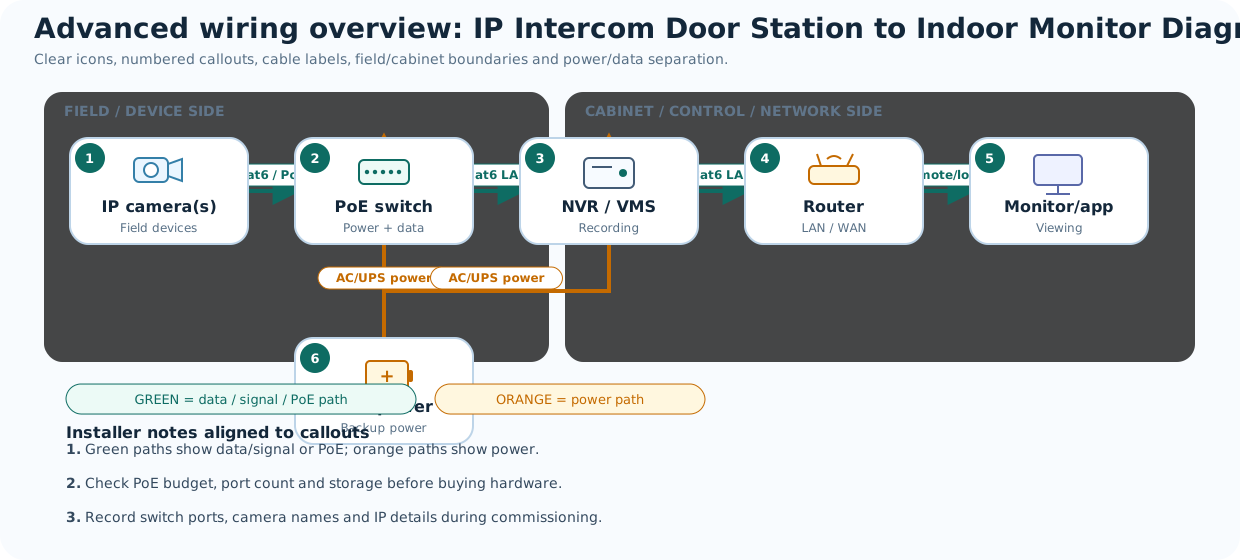
Advanced hero diagram
Mobile simplified flow
This premium version shows numbered callouts, labelled cable paths, power/data distinction and key installer notes.
Diagram overview
The diagram above shows the logical relationship between field devices, control equipment, power sources and user interfaces. Adapt the layout to suit the actual brand, terminal names, distance and site conditions.
Legend and key assumptions
Use this section to quickly interpret the devices shown in the diagram and the assumptions behind the layout.
- Intercom lock wiring often needs separate power planning rather than relying on the monitor alone.
- IP and 2-wire systems should not be treated as interchangeable from a wiring perspective.
- Door release timing and lock type should be confirmed early in the design.
What cable is commonly used?
The table below lists common cable choices for this type of system. Treat these as typical Australian industry choices rather than universal rules.
| Connection | Common cable | Typical purpose | Notes |
|---|---|---|---|
| IP intercom device | Cat5e or Cat6 | PoE intercom door stations and indoor monitors | PoE simplifies both data and power. |
| 2-wire intercom bus | Dedicated 2-core as specified | 2-wire monitor/door station systems | Always follow the exact system manual. |
| Door strike power | 2 core stranded lock cable | 12V or 24V lock power | Size cable appropriately for lock current and distance. |
| Exit button | 2 core or 4 core low-voltage cable | REX or exit input | Shielding is usually not needed for short runs. |
| Gate trigger | 2 core or 4 core control cable | Dry contact or relay trigger to gate motor | Check if the gate input expects N/O or N/C. |
Recommended cable selection for this layout
This table is more specific to the diagram above and is intended to complement the broader cable table already on the page.
| Connection | Recommended cable | Why it is commonly chosen |
|---|---|---|
| IP intercom devices | Cat5e or Cat6 | Typical cable for PoE-based intercom systems. |
| 2-wire devices | Manufacturer-specified 2-core cable | Use the exact cable and topology specified by the 2-wire system. |
| Strike or maglock power | 2 core lock cable | Lock power should be sized for current draw and distance. |
| Exit button | 2 core or 4 core low-voltage cable | Used for local request-to-exit or door release control. |
Step-by-step installation approach
A sensible workflow reduces mistakes and produces better documentation. The following sequence is a practical starting point.
Review the scope for ip intercom door station to indoor monitor diagram and list every field device, controller, power supply, rack item and interface that needs to appear on the drawing.
Mark the physical locations on a site sketch so cable routes, service access and cabinet positions are clear before any cable is pulled.
Choose the cable type for each link based on power, data, distance, environment and manufacturer requirements rather than guessing or standardising everything to one cable.
Run and label each cable clearly at both ends. Use a naming convention that matches the diagram, cable schedule and equipment labels.
Terminate devices carefully and confirm terminal naming, polarity, shield handling, reader bus or PoE requirements before powering the system.
Test continuity, link status and basic device operation before final dressing and permanent fixing. This saves major rework later.
Commission the full system, confirm power loads, lock behaviour, monitoring logic or network settings, and record any variations from the original concept.
Update the final as-built diagram and keep it with the job records so the next technician can fault-find or expand the system efficiently.
Suggested installation sequence
Confirm whether the system is IP or 2-wire before choosing cable and topology.
Mount the door station, monitor and power/distribution hardware in the locations shown on the plan.
Run and label the device cable plus the separate door release cabling if a lock is being controlled.
Program device addresses or initialise the system, then test call, talk and monitor functions.
Test the release path from monitor, app and exit button if applicable, then record the final wiring notes.
Tools, materials and checks
Useful items on hand
- Label printer or marker system
- Cable tester / network tester as appropriate
- Manufacturer installation manual
- Basic hand tools and termination tools
- Site plan or sketch for route marking
- Notebook or digital cable schedule
Before you power up
- Confirm voltage and polarity.
- Check PoE class and total switch budget if relevant.
- Verify lock type, relay logic or monitored input behaviour where relevant.
- Check cable labels against the diagram and schedule.
- Make sure pathways are protected and weather suitable.
- Photograph the final terminations for future reference.
Fault finding and troubleshooting notes
Common fault scenarios
- Call but no video: check PoE, device addressing, switch patching and whether the monitor is registered.
- Door does not unlock: check relay allocation, lock power, timer duration and fail-safe / fail-secure behaviour.
- Unstable operation on 2-wire systems: re-check the topology, distance and the exact distributor wiring.
- App access failing: confirm LAN / cloud registration and that the monitor or door station is online.
Commissioning checks
- Verify that every labelled cable appears at the correct destination.
- Photograph key terminations, cabinets and field devices for the as-built record.
- Record firmware, addressing and device names where relevant.
- Confirm the client or end user understands the reset, monitoring or remote access workflow.
Common mistakes to avoid
- Using the wrong cable type because the device only looked similar to another one.
- Ignoring distance limits, voltage drop or PoE budget calculations.
- Forgetting that lock power, relays and monitored inputs often need separate planning.
- Leaving cables unlabelled or relying on memory for panel, switch or controller ports.
- Skipping the as-built update after the commissioning stage.
Enhanced page note: These mistakes are especially common when diagrams are copied without checking the actual hardware specification, power requirement or site distance.
Related product types
Frequently asked questions
Can I use Cat6 for everything?
No. Cat6 is excellent for IP and PoE devices, but alarms, reader buses, lock circuits, 2-wire intercoms and power feeds often need different cable types.
Do I still need the manufacturer manual?
Yes. This page is a practical guide, but terminal naming, current draw, address settings and approved cable types must always be confirmed in the actual product documentation.
Should I create a cable schedule as well as a diagram?
Absolutely. A cable schedule makes installation, testing, handover and future maintenance much easier.